
PlayProbe Unity SDK
Sessions, telemetry, in-game surveys and screenshot-attached feedback, reporting straight to your PlayProbe dashboard.
01What the SDK does
Drop one prefab into your first scene, call StartSession(), and
everything a playtest produces arrives in the dashboard without you building any of the plumbing.
| Feature | What you get |
|---|---|
| Sessions | A run of your game, standalone or handed off from a specific tester's dashboard session. |
| Passive analytics | Average and minimum FPS, plus an optional position heatmap of any transforms you register. |
| Events | Your own gameplay events, buffered and batched. Unity errors too, if you opt in. |
| Mid-game surveys | Registered in code, rendered by the SDK, submitted the moment the player answers. |
| Instant Feedback | A report form with a screenshot and a hardware profile attached, opened from a floating button or your own UI. |
| Consent | An opt-in gate that collects and sends nothing at all until the player agrees. |
DontDestroyOnLoad singleton[PlayProbe] warning and degrades quietly: a missing config
means no session, a missing prefab means no popup, a dead network means dropped events. Nothing
bubbles an exception into your Update.
02Requirements & the Pro plan
| Unity | 6000.0 or newer. The SDK awaits AsyncOperation directly, which Unity only supports from 2023.1 onward; 6000.0 is what it is built and tested against. |
| Packages | com.unity.ugui, which every Unity project already has. Nothing else — no Input System dependency, no third-party JSON library. |
| Render pipeline | Any. The UI is uGUI on its own overlay canvas and does not touch your rendering. |
| Account | A PlayProbe Pro plan, and a test with SDK mode enabled and a share token. |
Sessions are refused for tests owned by a Free account — the sdk-start-session
endpoint returns plan_required and the game logs a warning instead of collecting
anything. Nothing crashes, but nothing is recorded either.
You do not have to discover that from a shipped build. Tools > PlayProbe > Setup asks the backend the same question at edit time — automatically, as soon as you paste a complete token — and tells you which of the three gates is not met: plan, SDK mode, or the test being open. When it is the plan, there is a button straight to the upgrade page.
03Quick start
From an empty project to a session appearing in the dashboard: about five minutes.
-
Install the package
Package Manager → + → Add package from git URL…, or point it at a local copy of the
PlayProbeSDKfolder. Dropping the folder straight intoAssets/works too. -
Create a test in the dashboard
On playprobe.io, create a test for your game and turn on Uses SDK. Copy the share token from the test's page — it is the only credential your Unity project needs.
-
Open the setup window
Tools > PlayProbe > Setup. Press Create PlayProbeConfig Asset; it is written to
Assets/Resources/PlayProbeConfig.asset, where the runtime looks for it.Paste the share token. It checks itself the moment the field holds a complete token — a Ready message means a session would start right now, and anything else names the problem and, where it can, offers the button that fixes it.
Before the token is complete the window answers without touching the network: too short (with the count so far), too long, whitespace around it, or the right length but not the usual
8-4-4-4-12shape. Check Again re-runs the check on demand — the one you want after switching the test to SDK mode or upgrading the account, since the token itself has not changed.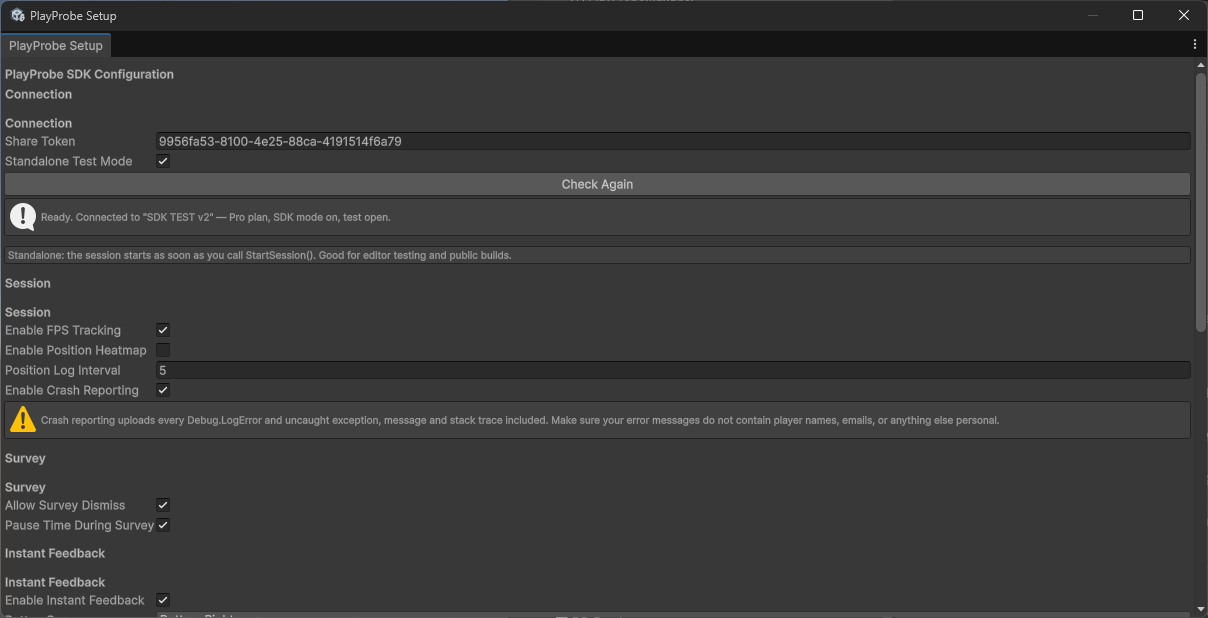
The setup window is the only place you need to visit to configure the SDK — every field here is a property on the config asset. -
Generate the UI prefabs
Press Create Missing UI Prefabs. This writes the survey overlay, the feedback popup, the consent dialog and the shared pieces into the package's
Resourcesfolder. Skip it and the popups have nothing to spawn — everything else still works. -
Put the manager in your first scene
Press Create PlayProbeManager In Active Scene. It adds the component and assigns your config to it. The object is
DontDestroyOnLoad, so it survives every scene load after that — add it once, in the scene that loads first.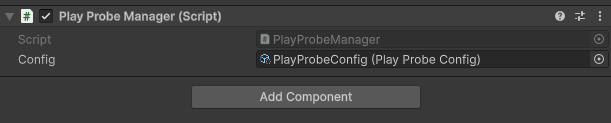
One component, one reference. Everything else is configured on the asset. -
Start a session
using PlayProbe;
using UnityEngine;

public class GameFlow : MonoBehaviour
{
    private void Start()
    {
        // Register every survey BEFORE starting — the schema travels with the start request.
        PlayProbeManager.Instance.Survey.Register("after_tutorial")
            .AddRating("How clear was the tutorial?", "tut_clarity")
            .AddText("Anything confusing?", "tut_notes");

        PlayProbeManager.Instance.StartSession();
    }

    public void OnTutorialFinished()
    {
        PlayProbeManager.Instance.ShowSurvey("after_tutorial");
    }
}
Press Play. The console logs
[PlayProbe] Session started successfully.and the session appears in the dashboard.
EndSession()
when you are done poking at it.
04Where everything lives
On disk
Assets/Resources, so a package update
never overwrites them. Everything under Assets/PlayProbeSDK belongs to the package —
including the generated prefabs, which Rebuild All Prefabs will happily overwrite.
At runtime
One object exists: PlayProbeManager.Instance. Everything else hangs off it.
| Reached through | Type | Responsible for |
|---|---|---|
.Survey | PlayProbeSurvey | Registering survey schemas against trigger keys |
.Events | PlayProbeEvents | Buffering and batching custom events |
.Analytics | PlayProbeAnalytics | FPS sampling and position logging |
.Feedback | PlayProbeFeedback | The report form. Null when Instant Feedback is off. |
.Consent | PlayProbeConsent | The player's decision, persisted in PlayerPrefs |
.AnswerTags | IReadOnlyList<AnswerTag> | The tag vocabulary, delivered at session start |
The prefabs
| Prefab | Spawned when |
|---|---|
PlayProbeSurveyCanvas | ShowSurvey(key) is called |
PlayProbeFeedbackCanvas | OpenFeedback(), or the floating button is clicked |
PlayProbeFeedbackButton | Session starts, if Instant Feedback is on |
PlayProbeStartSessionScreen | StartSession() in handoff mode |
PlayProbeConsentDialog | Consent is required and the player has not answered |
PlayProbeToast | Anything is submitted successfully, or fails |
PlayProbeTagChip, PlayProbeSelectableButton | Spawned by the screens above as they build |
PlayProbeRatingQuestion, …EmojiQuestion, …YesNoQuestion, …MultipleOptions, …TextQuestion | One per question in a survey, by type |
They are loaded by name with Resources.Load, so a prefab that is missing produces a
warning and a no-op rather than an error — and one you replace with your own is picked up with no
code change, as long as it still carries the matching controller component.
05Sessions
PlayProbeManager.Instance.StartSession();
// ... play ...
PlayProbeManager.Instance.EndSession();   // also happens automatically on quit
Two modes
Standalone isStandaloneTest = true | Handoff isStandaloneTest = false | |
|---|---|---|
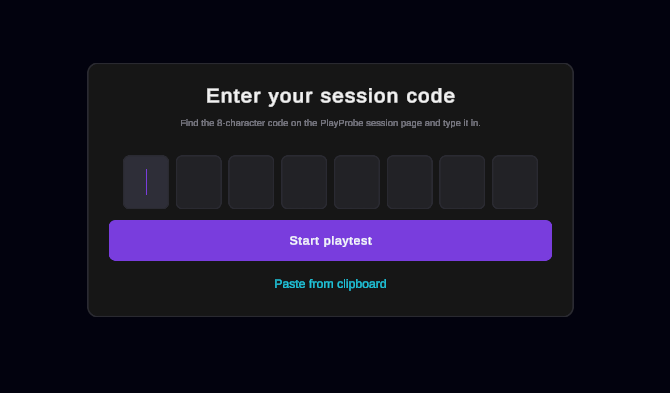
| What happens | Posts the share token and starts immediately. | Shows a code-entry screen first. |
| The tester | Anonymous — one session per run. | Types the eight-character code from their dashboard session page; the session is tied to them. |
| Use it for | Editor testing and public builds. | Recruited playtests where you already know who is playing. |
EndSession() stops tracking, flushes whatever is buffered, removes the feedback
button, and posts the duration and FPS summary. It also runs automatically when the application
quits, so a player who alt-F4s still produces a complete session.
Register(...) call made after StartSession() is not part
of that exchange, and ShowSurvey for it will warn that the trigger key is unknown.
06Surveys
A survey is registered against a trigger key — a name you choose for a moment in your game — and shown when that moment arrives.
Create
PlayProbeManager.Instance.Survey.Register("after_level_1")
    .AddRating("How would you rate this level?", "lvl1_rating")
    .AddEmojiScale("How did the boss feel?", "lvl1_boss_feel")
    .AddYesNo("Hit any bugs?", "lvl1_bugs")
    .AddMultipleChoice("Favourite part?", "lvl1_fav",
        new[] { "Enemies", "Graphics", "Sound", "Gameplay" })
    .AddText("Anything else?", "lvl1_notes", required: false);
Trigger
PlayProbeManager.Instance.ShowSurvey("after_level_1");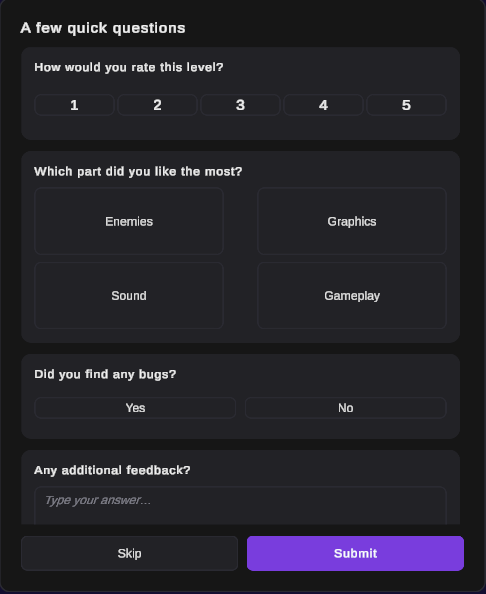
Question types
| Method | Renders as | Submitted as | required default |
|---|---|---|---|
AddRating | A 1–5 bar that fills up to your pick | value_number | true |
AddEmojiScale | A row of five faces, one chosen | value_number | true |
AddYesNo | Two buttons | value_choice — "Yes" / "No" | true |
AddMultipleChoice | Options, two per row | value_choice — the option text | true |
AddText | A multi-line box with the tag chooser | value_text + tag_ids | false |
Every Add… takes an sdkQuestionId: your own stable identifier for that
question. It must be unique within the test and must not change between builds — it
is what the backend maps answers onto.
The label can change freely. Rewording "Rate this level" to "How was that
level?" keeps the same results column. Changing the id starts a new one and orphans
everything answered before.
Behaviour
- Required questions block submission until answered; optional ones the player skipped are left out of the submission entirely.
allowSurveyDismisscontrols whether the skip button appears and whether Escape closes the survey.pauseTimeDuringSurveysetsTime.timeScaleto 0 while it is on screen. Turn it off for multiplayer, where you cannot pause the world.ShowSurveywarns and does nothing when there is no active session, or when the trigger key was never registered — which almost always means a typo, or aRegistercall that happened too late.
07Instant Feedback
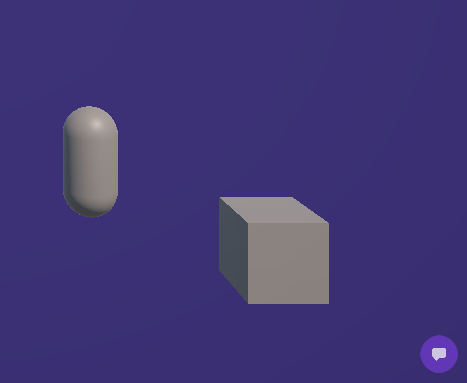
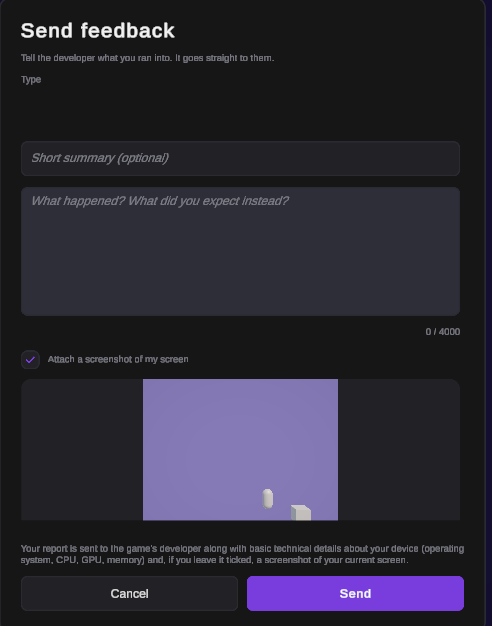
Turn on enableInstantFeedback and a floating button appears when the session starts.
Clicking it captures the current frame, pauses the game, and opens the report form.
Open it yourself
From a pause-menu entry, a keyboard shortcut, anywhere:
PlayProbeManager.Instance.OpenFeedback();Don't want the floating button at all? Delete PlayProbeFeedbackButton.prefab from the
package's Resources folder and drive it from your own UI.
Skip the popup entirely
PlayProbeManager.Instance.SubmitFeedback(
    title: "Fell through the floor",
    description: "Standing on the bridge in level 2, near the second torch.",
    category: "bug",              // bug | suggestion | praise | other
    attachScreenshot: true,
    tagIds: null);
What a report carries
What the player typed, plus: the scene name and build index, their world position, playtime, instantaneous and average FPS, memory, quality settings, screen size, a hardware profile (OS, CPU, GPU, RAM), and — if the toggle is left on — a screenshot. The last two are why the popup shows a notice; see section 11.
| Setting | Effect |
|---|---|
enableInstantFeedback | Master switch. When off, Feedback is null and OpenFeedback() warns. |
feedbackButtonCorner | Which corner the floating button parks in. |
pauseGameDuringFeedback | Freeze the game while the popup is open. |
feedbackAllowScreenshot | Whether screenshots are possible at all. Off hides the whole block. |
feedbackScreenshotDefaultOn | Whether the attach-screenshot toggle starts ticked. |
feedbackScreenshotMaxWidth | Screenshots wider than this are downscaled before upload. |
Categories are fixed server-side (bug, suggestion, praise,
other); anything else is stored with no category. Translate the labels in the UI
theme, not the ids. Titles cap at 200 characters, descriptions at 4000.
08Events & analytics
Custom events
PlayProbeEvents events = PlayProbeManager.Instance.Events;

events.LogEvent("checkpoint_reached");                  // no value
events.LogEvent("score_gained", 250f);                  // numeric
events.LogEvent("difficulty_selected", "hard");         // text
events.LogPosition(player.position, "player", "death"); // a tagged point
Events are uploaded in batches: whenever 20 pile up, every 30 seconds, and on session end. A
failed upload is retried three times before the batch is dropped, and the buffer is capped at 500
events so an offline player never grows the SDK's memory use without limit.
LogEvent is a no-op with a warning when no session is active.
Analytics
PlayProbeAnalytics analytics = PlayProbeManager.Instance.Analytics;

analytics.SetTrackedTransform(player.transform);       // the primary subject
analytics.RegisterTrackedObject("enemy", boss);        // additional tagged objects

float average = analytics.AverageFps;
float worst = analytics.MinFps;
FPS is sampled every second while enableFpsTracking is on. Positions are logged every
positionLogInterval seconds while enablePositionHeatmap is on — the primary
transform plus every tagged object you registered.
Crash capture
With enableCrashReporting, the SDK hooks Unity's log callback and turns every
Error and Exception into an event carrying the message and the stack
trace.
Debug.LogError, message and stack trace included. If your error
messages contain player names, account emails, or save paths with a username in them, those go too.
Audit your error logging before enabling it, or leave it off.
09Answer tags
A tag vocabulary managed in PlayProbe — Combat, UI/UX, Performance, and so on — lets testers label what an open-ended answer is about, so results can be grouped by theme. The active list arrives with the start-session response:
IReadOnlyList<AnswerTag> tags = PlayProbeManager.Instance.AnswerTags;
// AnswerTag { id, slug, label, sort_order }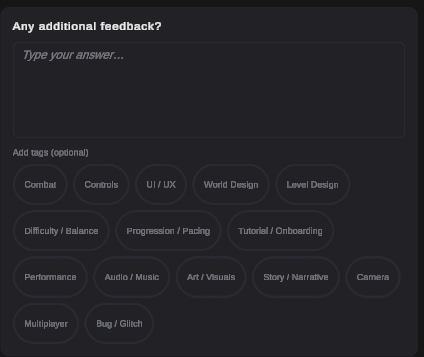
The built-in UI already handles this: PlayProbeTagSelector renders the chips on
open-ended survey questions and in the feedback popup, and writes the chosen ids into the submission.
When the test has no tags configured, the whole chooser hides itself.
Tags are always optional, at most three per answer by default, and the backend drops ids that are not in the active vocabulary. They are ignored on anything other than free-text answers and feedback.
10The UI layer
Every PlayProbe screen is generated from one asset rather than hand-built. That
asset is PlayProbeUiTheme, and it holds the palette, the type scale, the metrics, and
every user-facing string the SDK shows.
Tools > PlayProbe > UI > Create Theme Asset      → Assets/Resources/PlayProbeUiTheme.asset
   ... edit colours, sizes, and every string ...
Tools > PlayProbe > UI > Rebuild All Prefabs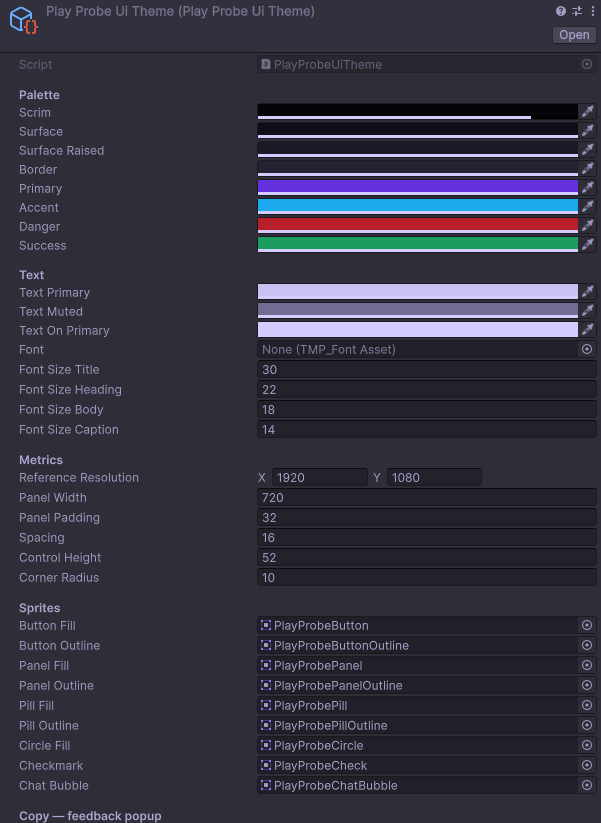
Colours are read at runtime as well as at build time, so changing primary restyles
selection states immediately without a rebuild; changing sizes or copy needs the rebuild. If no theme
asset exists, the SDK falls back to the built-in PlayProbe dark theme — you never have to
create one.
The two menu items
| Create Missing Prefabs | Writes only prefabs that do not exist. Safe: it never touches one you customised. |
| Rebuild All Prefabs | Overwrites all of them, after asking. This is what you run after editing the theme. |
The sprite set
The shapes — rounded rectangles, capsules, the checkmark and the speech bubble — come from nine
PNGs in Textures/UI. They are white with an alpha shape, because Unity
multiplies a Button's colour block by its target graphic's colour: tint both and the two multiply
together, so the brand purple comes out muddy and the disabled state loses its alpha. One white
sprite gives correct normal, hover, pressed and disabled states for every colour.
- Interactive things (buttons, inputs, toggles) keep a white image and take their colour from the colour block. Non-interactive things (panels, the scrim, question cards) colour their image directly, because there is no colour block to do it for them.
- Borders are a separate ring Image rather than uGUI's
Outlineeffect — that effect draws the graphic four times at an offset, which smears rather than strokes on a rounded corner. - The corner radius does not depend on the PNG's resolution: the builder derives
pixelsPerUnitMultiplierfrom the sprite's own 9-slice border, so re-exporting at any size still lands on thecornerRadiusin the theme.
Drop replacement PNGs into the package's Textures/UI/ folder under the same filenames
and the prefab builder assigns them to the theme's empty sprite slots. A slot you have already filled
is left alone, so pointing one at your own artwork survives a rebuild. Leave a slot empty and that
shape falls back to Unity's built-in UISprite.
Two components worth knowing about
PlayProbeCapsuleImage keeps pill shapes round. A 9-sliced sprite draws its corners at
a fixed size, so a pill can only be truly round at one height — and a tag chip and the feedback button
are different heights. When the top and bottom borders together exceed the element, Unity scales them
to fit, so the corner keeps its width but loses height and the round end flattens into an ellipse.
This component recomputes the multiplier from the height the element actually gets. It is added
automatically; put it on your own Image if you build a pill-shaped control by hand.
PlayProbeFlowLayoutGroup is a wrapping row, which uGUI does not ship.
HorizontalLayoutGroup keeps everything on one line and GridLayoutGroup wraps
but forces identical cells, so "Tag" came out as wide as "Progression / Pacing". This one wraps
and lets each child keep its own preferred width. Reuse it anywhere:
PlayProbeFlowLayoutGroup flow = container.gameObject.AddComponent<PlayProbeFlowLayoutGroup>();
flow.Spacing = new Vector2(8f, 8f);
Keeping your own version of a screen
Replace the prefab in the package's Resources folder with your own. The only
requirement is that it carries the matching controller component
(PlayProbeFeedbackCanvas, PlayProbeSurveyCanvas, …) with its serialized
fields wired. Every one of those fields is optional — a popup with no title input, or no tag chooser,
works fine.
Or skip the SDK's screens entirely: every subsystem is callable directly. Add a new question
type by implementing IPlayProbeQuestionElement on a prefab in a
Resources folder, and the survey canvas will drive it exactly like the built-in ones.
11Privacy & consent
What the SDK collects
| Data | When | Notes |
|---|---|---|
| Platform, Unity version, screen size, SDK version | Session start | Coarse — Windows, Android, … |
| Session duration, average and minimum FPS | Session end | |
| Custom events you log | LogEvent(...) | You choose the names and values |
Unity Error/Exception logs and stack traces | If enableCrashReporting | Includes your own Debug.LogError messages |
| Tracked object positions | If enablePositionHeatmap | In-game coordinates, not real-world location |
| Survey answers | On submit | Free text — tell players not to type personal details |
| Feedback text, scene, world position, playtime, FPS, memory | Feedback submit | |
| Hardware profile: OS, CPU, GPU, RAM, device model | Feedback submit | Distinctive in combination — treat it as personal data |
| Screenshot of the current screen | Feedback submit, if the toggle is on | Whatever is on screen is captured |
The SDK does not collect advertising ids, contact details, precise location, or
any persistent cross-app device identifier. Feedback screenshots and session recordings are deleted
after 30 days. The only thing written to the device is the consent decision, in
PlayerPrefs under playprobe_consent.
Gating collection on consent
private void Start()
{
    // Safe to call before consent: it waits, and starts by itself once the player agrees.
    // No network call happens in the meantime.
    PlayProbeManager.Instance.StartSession();
}

public void OnPlayerAccepted() => PlayProbeManager.Instance.SetConsent(true);
public void OnPlayerDeclined() => PlayProbeManager.Instance.SetConsent(false);
With requireConsent = true:
- Before consent —
StartSession()sends nothing and remembers it was asked. Events raised before consent are dropped rather than buffered, so agreeing later never uploads anything from before. - On
SetConsent(true)— the deferred session starts automatically. - On
SetConsent(false)— collection stops, buffered events are discarded rather than sent, the feedback button is removed, and an open popup is cancelled. No session-end call is made either: sending the duration and FPS summary would be more processing after the player said stop. - The decision persists between runs. Give players a way to change their mind — an options-menu
toggle calling
SetConsent— because withdrawing has to be as easy as agreeing.
The built-in consent dialog
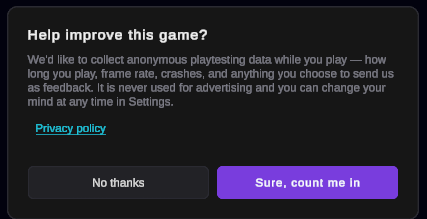
requireConsent and
useBuiltInConsentDialog are both on and the player has not answered.The session starts as soon as they agree; there is nothing else to write. If the player has already
declined it is not shown again — re-prompting after a refusal is nagging, and in several jurisdictions
a problem in itself. Call ResetConsent() from an options menu to give them a way back.
Showing your own prompt instead? Turn useBuiltInConsentDialog off, or the player sees
two. You can also spawn PlayProbe's dialog yourself, at a moment of your choosing:
PlayProbeConsentDialog.Show(granted => ResumeWhateverYouPaused());The share token is in your build
shareToken lives in a ScriptableObject inside your game, so anyone who unpacks the
build can read it. That is inherent — the SDK has to authenticate somehow, and there is no secret a
client can keep. The token only grants what a legitimate player has: starting sessions and submitting
data to your test. It cannot read results, reach other tests, or touch your account. Close tests when
a playtest is over, and rotate the token if you publish a build widely.
Before you ship
- Name PlayProbe in your own privacy policy — there is copy-paste text in
documentation.md, section 11. - Decide whether you need
requireConsent = true. You probably do for EU/UK players. - Give players a way to withdraw consent later, not just at first launch.
- Set
privacyPolicyUrlin the config, or the link hides itself. - Audit your
Debug.LogErrormessages if crash reporting is on. - Do not log personal data through
LogEventvalues. - If children play your game, check the age of digital consent in your markets — it ranges from 13 to 16 across the EU.
12Troubleshooting
The SDK never throws into gameplay. Failures log a [PlayProbe] warning — check the
console first.
| Symptom | Cause |
|---|---|
| Nothing happens at all | No share token, or requireConsent is on and waiting. The console says which. |
| "requires a Pro plan" | The account owning the test is on Free. Upgrade, then press Check Again in the setup window. |
| Session does not start | Open the setup window and read the token banner — it distinguishes a bad token, SDK mode being off, and a closed test. |
| Consent prompt never appears | useBuiltInConsentDialog is off, the player already declined, or the prefab was never generated. |
| Survey does not show | The trigger key must match a Register(...) made before StartSession(). |
| Survey or feedback popup does nothing | The prefabs were never generated. Run Create Missing Prefabs. |
| UI appears but clicks do nothing | Something else in the scene covers it, or an input module is missing. The SDK creates an EventSystem when there is none. |
| Position heatmap is empty | enablePositionHeatmap is off, or no non-null transform was registered. |
| Custom events missing | LogEvent only records while a session is active. |
| Events stop arriving mid-session | Uploads are failing. Earlier console warnings carry the status code; after three failures a batch is dropped. |
| "Privacy policy" link is missing | privacyPolicyUrl is blank. The link hides rather than dead-ending. |
13API reference
PlayProbeManager
static PlayProbeManager Instance | The singleton. Null before its Awake. |
bool IsSessionActive | |
void StartSession() | Standalone or handoff, per isStandaloneTest. |
void EndSession() | Also happens automatically on quit. |
void ShowSurvey(string triggerKey) | |
void OpenFeedback() | |
void SubmitFeedback(title, description, category, attachScreenshot, tagIds) | Bypasses the popup. |
void SetConsent(bool granted) | |
void ResetConsent() | Forgets the decision so the player is asked again. |
bool IsCollectionAllowed | |
string PrivacyPolicyUrl | Your policy URL from the config, or null. |
IReadOnlyList<AnswerTag> AnswerTags | Delivered at session start. |
Survey · Analytics · Events · Feedback · Consent | Subsystems. Feedback is null when Instant Feedback is off. |
Subsystems
PlayProbeSurvey | Register(triggerKey) returns a SurveyBuilder: AddRating, AddEmojiScale, AddYesNo, AddMultipleChoice, AddText. |
PlayProbeEvents | LogEvent(name), LogEvent(name, float), LogEvent(name, string), LogPosition(Vector3, name, tag = null). |
PlayProbeAnalytics | SetTrackedTransform, RegisterTrackedObject, AverageFps, MinFps, HasFpsSamples. |
PlayProbeFeedback | Open(), Submit(...), Cancel(), IsOpen, PendingScreenshot, AllowScreenshot, ScreenshotDefaultOn, PrivacyNotice, PrivacyPolicyUrl, static Categories, MaxTitleLength, MaxDescriptionLength. |
PlayProbeConsent | Status (Unknown/Granted/Denied), HasAnswered, Set(bool), Clear(), event Changed. |
UI
PlayProbeUiTheme (Default, InvalidateCache()),
PlayProbeFlowLayoutGroup (Spacing), PlayProbeCapsuleImage
(Apply()), PlayProbeConsentDialog.Show(callback),
PlayProbeToast.Show(message, isError), PlayProbeTagSelector
(Build(), SelectedTagIds, ClearSelection()),
PlayProbeLinkButton (Target, ResolvedUrl, Open()),
IPlayProbeQuestionElement for custom question types.